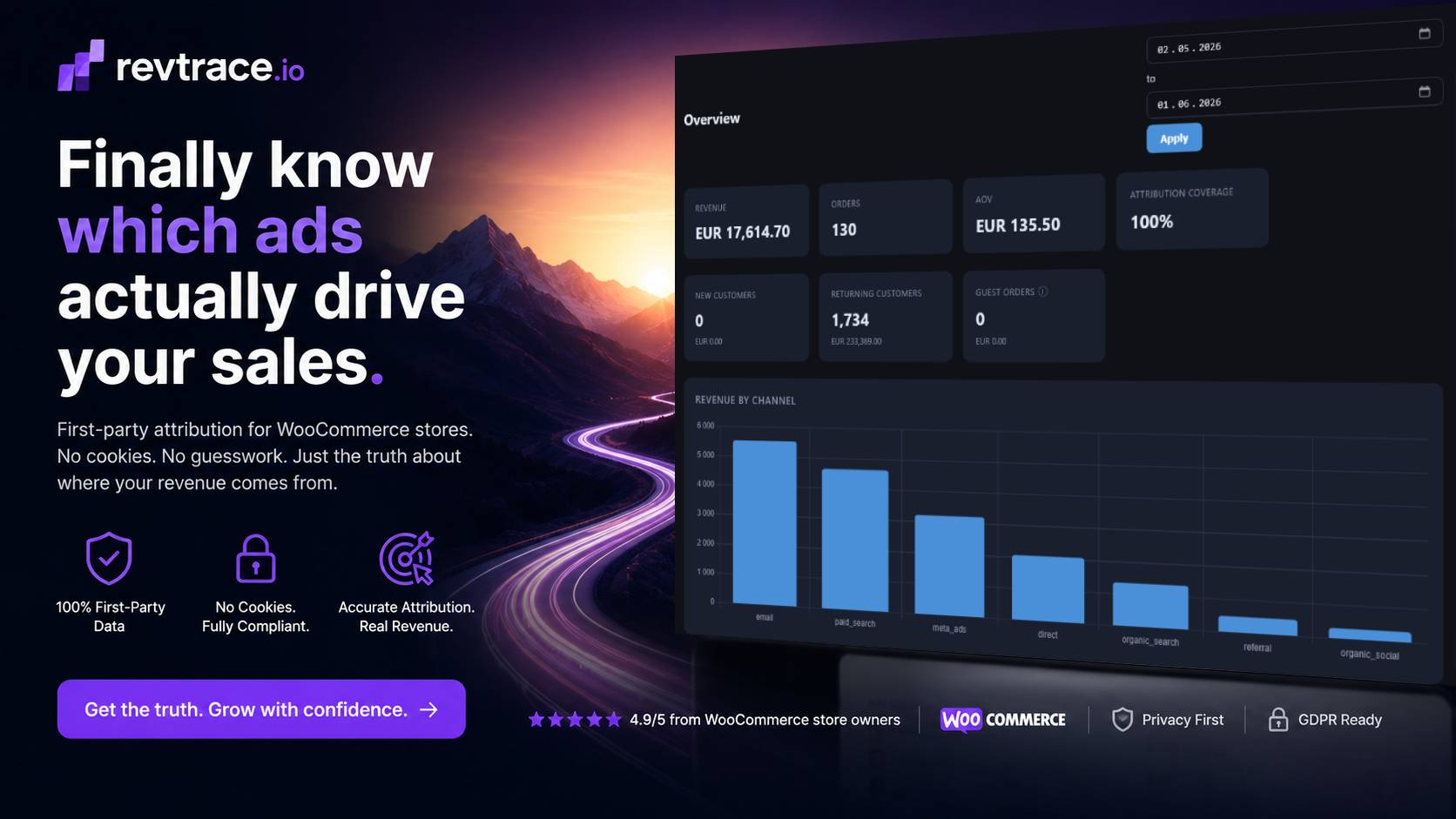
Revtrace attributes every order to the channel that drove it. For that to work, your traffic sources need to be tagged correctly. Without UTM parameters, email campaigns look like “direct” traffic and some paid ads show up as “referral” — which makes your attribution data misleading.
This guide shows you exactly how to tag each channel so Revtrace classifies it correctly.
How Revtrace Classifies Channels
Revtrace reads three UTM parameters plus platform-specific click IDs:
| Parameter | Example | Purpose |
|———–|———|———|
| `utm_source` | `omnisend`, `google`, `facebook` | Where the traffic came from |
| `utm_medium` | `email`, `cpc`, `social` | What type of traffic it is |
| `utm_campaign` | `summer_sale_2024` | Which specific campaign |
| `gclid` | (auto-added by Google) | Google Ads click — auto-detected |
| `fbclid` | (auto-added by Meta) | Meta Ads click — auto-detected |
| `ttclid` | (auto-added by TikTok) | TikTok Ads click — auto-detected |
`utm_medium` is the most important parameter. It determines which channel bucket the order lands in. Use the exact values below — Revtrace matches them case-insensitively but spelling matters.
Channel Classification Reference
| utm_medium value | utm_source | Revtrace channel |
|—————–|————|—————–|
| `email` | anything | Email |
| `newsletter` | anything | Email |
| `cpc` or `ppc` | `google` | Paid Search |
| `cpc` or `ppc` | `facebook` or `instagram` | Meta Ads |
| `cpc` or `ppc` | `tiktok` | TikTok |
| `cpc` or `ppc` | `linkedin` | Paid Social |
| `paid_social` | anything | Paid Social |
| `social` | anything | Organic Social |
| `organic` | anything | Organic Search |
| (no UTMs, Google referrer) | — | Organic Search |
| (no UTMs, social referrer) | — | Organic Social |
| (gclid present) | — | Paid Search |
| (fbclid present) | — | Meta Ads |
Email Platforms
Email is the most common source of attribution errors. If UTM auto-tagging is not enabled, Revtrace cannot tell whether a click came from an email campaign or someone typing your URL directly.
Omnisend
Omnisend supports automatic UTM tagging per campaign and flow.
For campaigns:
1. Open the campaign editor
2. Go to Campaign Settings (or the final review step)
3. Find Tracking or UTM Parameters
4. Enable Add UTM parameters to links
5. Omnisend pre-fills `utm_source=omnisend` and `utm_medium=email` — keep these values
For flows (automations):
1. Open the flow in the automation editor
2. Click an email step → Edit
3. Go to Settings within the email editor
4. Enable UTM tracking
5. Same values apply: `utm_source=omnisend`, `utm_medium=email`
Omnisend also uses a 7-day click attribution window in its own dashboard, which counts a sale as “email-driven” if someone clicked an email within the last 7 days — even if they later came back via Google. Revtrace uses session-based last-touch, so numbers will differ. Both are correct; they measure different things.
Klaviyo
Klaviyo auto-tags links by default in most accounts, but verify it is on.
To confirm or enable:
1. Go to Account → Settings → UTM Tracking
2. Make sure Automatically add UTM parameters to all links is enabled
3. Default values Klaviyo uses: `utm_source=klaviyo`, `utm_medium=email`
4. Revtrace recognises these and classifies clicks as Email
For individual flows or campaigns, you can override at the message level under Settings → Tracking inside the email editor.
Mailchimp
Mailchimp does not enable UTM tracking by default.
To enable:
1. Go to Account → Settings → Tracking
2. Check Add Google Analytics link tracking
3. This adds `utm_source=mailchimp` and `utm_medium=email` to all links
Alternatively, add UTMs manually to each link using the format:
https://yourstore.com/product?utm_source=mailchimp&utm_medium=email&utm_campaign=summer_sale
ActiveCampaign
1. Go to Settings → Tracking
2. Enable Google Analytics link tracking
3. This appends `utm_source=activecampaign&utm_medium=email` automatically
Paid Advertising
Google Ads
Google Ads automatically appends a `gclid` parameter to every ad click. Revtrace detects this click ID and classifies the session as Paid Search — no manual tagging needed.
However, you should still use UTMs for campaign-level reporting:
Recommended template:
utm_source=google&utm_medium=cpc&utm_campaign={campaign}&utm_content={ad}
Enable auto-tagging in Google Ads (Account Settings → Auto-tagging → Tag the URL) to ensure `gclid` is always present as a reliable fallback.
Meta Ads (Facebook & Instagram)
Meta automatically appends `fbclid` to ad clicks. Revtrace detects this and classifies sessions as Meta Ads.
For campaign-level detail, add UTM parameters in the URL Parameters field of your ad:
utm_source=facebook&utm_medium=cpc&utm_campaign={{campaign.name}}&utm_content={{ad.name}}
Meta dynamic variables (`{{campaign.name}}` etc.) are resolved at click time.
Use `utm_source=facebook` or `utm_source=instagram` — both are recognised. Do not use `utm_source=meta` alone if you want separate Instagram breakdown; use the platform-specific source instead.
TikTok Ads
TikTok appends `ttclid` automatically. Revtrace classifies these sessions as TikTok.
Add UTMs in the Tracking section of your TikTok ad:
utm_source=tiktok&utm_medium=cpc&utm_campaign={campaign_name}
LinkedIn Ads
LinkedIn does not use a proprietary click ID that Revtrace auto-detects. UTM tagging is required.
In LinkedIn Campaign Manager, add to the Destination URL tracking parameters:
utm_source=linkedin&utm_medium=cpc&utm_campaign=your_campaign_name
Revtrace will classify these as Paid Social.
Organic Social Posts
If you share links on Facebook, Instagram, or TikTok without ads, Revtrace usually detects the referrer automatically and classifies it as Organic Social. No UTMs needed for most cases.
If you want campaign-level tracking for specific organic posts (e.g. influencer links, newsletter referrals), tag them manually:
utm_source=instagram&utm_medium=social&utm_campaign=influencer_june
UTM Naming Conventions
Consistent naming makes your campaign reports readable. Follow these rules:
– Lowercase only — `summer_sale` not `Summer Sale`
– Underscores, not spaces — spaces get encoded as `%20` and look messy
– Be specific in `utm_campaign` — `june_newsletter_2024` is better than `newsletter`
– Never use UTMs on internal links — tagging links within your own site resets sessions and corrupts attribution
Verifying Your Tags
After setting up UTM tracking in your email platform or ad account:
1. Send a test click to yourself (use the preview link or a test order)
2. Log in to Revtrace and go to Journeys
3. Find the session and check that the channel is classified correctly
4. If it shows “direct” or “referral” instead of the expected channel, re-check your UTM values
You can also inspect a URL before clicking by hovering over a link — if you see `utm_medium=email` in the URL, the tag is in place.
Quick Reference Card
Copy these UTM sets for your most common channels:
Omnisend email
utm_source=omnisend&utm_medium=email&utm_campaign=CAMPAIGN_NAME
Klaviyo email
utm_source=klaviyo&utm_medium=email&utm_campaign=CAMPAIGN_NAME
Mailchimp email
utm_source=mailchimp&utm_medium=email&utm_campaign=CAMPAIGN_NAME
Google Ads (manual tag, gclid added automatically)
utm_source=google&utm_medium=cpc&utm_campaign=CAMPAIGN_NAME
Meta Ads
utm_source=facebook&utm_medium=cpc&utm_campaign=CAMPAIGN_NAME
TikTok Ads
utm_source=tiktok&utm_medium=cpc&utm_campaign=CAMPAIGN_NAME
LinkedIn Ads
utm_source=linkedin&utm_medium=cpc&utm_campaign=CAMPAIGN_NAME
Organic social post
utm_source=instagram&utm_medium=social&utm_campaign=CAMPAIGN_NAME