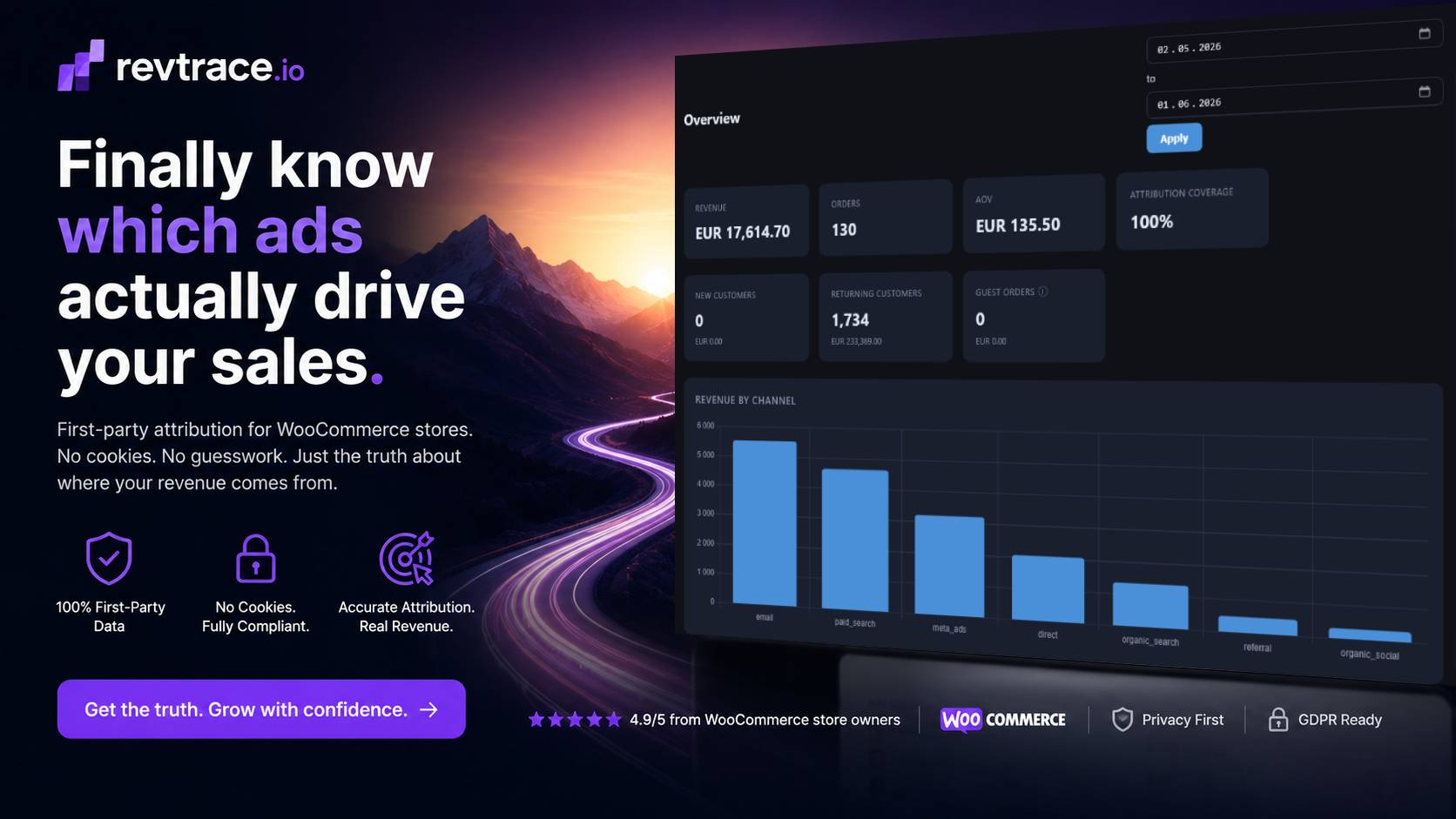
Getting accurate attribution data takes about five minutes. This guide walks you through installing the Revtrace plugin on your WordPress site and connecting it to your Revtrace dashboard.
Before You Start
Make sure you have:
– A Revtrace account — start your free 21-day trial if you haven’t already (no credit card required)
– WooCommerce installed and active on your WordPress site
– WordPress admin access
Step 1 — Create Your Store in Revtrace
After registering, log in to [app.revtrace.io](https://app.revtrace.io) and go to **Settings**. Click **Create Store** and enter your store’s name and URL.
Once saved, Revtrace generates three credentials you’ll need in the next step:
– Store ID — a unique identifier for your store
– API Key — authenticates requests from the plugin
– API Secret — signs requests for security (shown once at creation — copy it now)
Keep this tab open. You’ll paste these values into the plugin settings shortly.
If you lose the API Secret, go to Settings → API Credentials and rotate the key to generate new ones.
Step 2 — Download the Plugin
From your Revtrace dashboard, go to Settings and click Download Plugin. This downloads revtrace-latest.zip — always the current stable version.
Do not unzip the file. WordPress uploads and installs it as a zip.
Step 3 — Upload and Activate in WordPress
1. In your WordPress admin, navigate to Plugins → Add New
2. Click Upload Plugin at the top of the page
3. Choose the `revtrace-latest.zip` file you downloaded
4. Click Install Now
5. Click Activate Plugin
The plugin is now installed but not yet connected to your store.
Step 4 — Enter Your Credentials
1. In WordPress admin, go to WooCommerce → Revtrace Settings
2. Paste your Store ID, API Key, and API Secret from Step 1
3. Click Save Changes
The plugin will attempt to verify the connection when you save. A success message confirms it’s working.
Step 5 — Verify the Connection
Go back to your Revtrace dashboard and navigate to Setup (or visit `/onboarding`). Click Check Connection.
When the plugin is installed correctly and a visitor lands on your store, Revtrace will receive its first session and redirect you automatically to the Overview dashboard.
It can take a few minutes for the first real session to arrive. You can also open your store in a new browser tab to trigger a test session.
Troubleshooting
“Connection failed” after saving credentials
Double-check that you copied the Store ID, API Key, and API Secret exactly — no extra spaces. Rotate credentials in Settings if unsure.
Plugin installed but no data arriving
Confirm that your WordPress server can reach `app.revtrace.io` over HTTPS (port 443). Some hosting providers or firewalls block outbound connections. Contact your host if needed.
WooCommerce not listed in the menu
Revtrace requires WooCommerce to be installed and active. Install it first from **Plugins → Add New**, search for “WooCommerce”.
Plugin shows as incompatible
Revtrace requires PHP 7.4 or higher and WooCommerce 5.0 or higher. Check your versions under **Tools → Site Health**.
What Happens Next
Once connected, Revtrace starts tracking every visitor session on your store — capturing UTM parameters, referrers, click IDs (Google, Meta, TikTok), and linking them to WooCommerce orders at checkout.
Within 24 hours of real traffic you’ll see your first channel attribution data in the **Overview** and **Channels** reports. The **AI Insights** tab generates a weekly brief every Monday with plain-language analysis of what drove revenue that week.
Need help? Visit revtrace.io/docs or reply to your welcome email.